How do I log in to the TIMOCOM Marketplace?
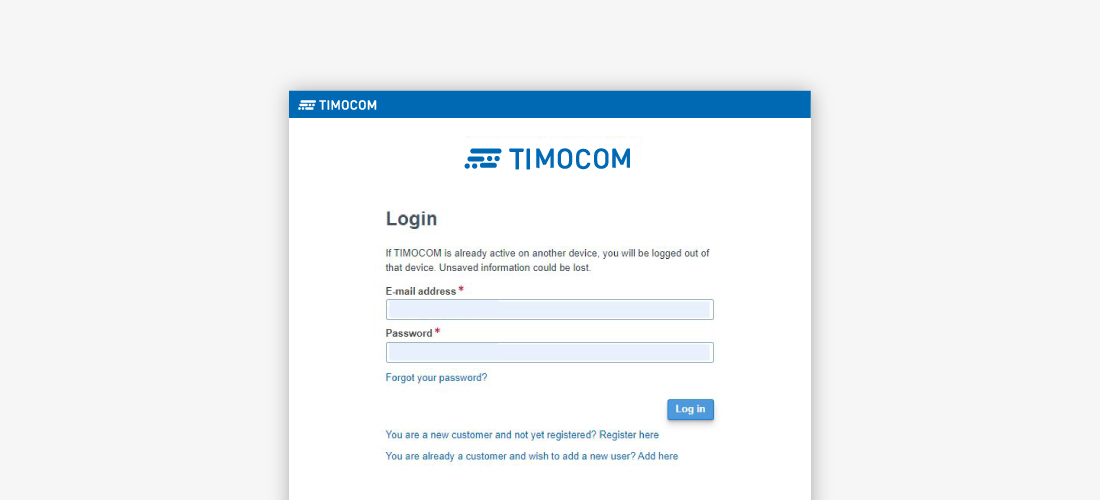
To log in on a PC or Laptop:
- Open the following link: Web login (timocom.com).
- Enter your e-mail address and the password you created.
- You will then be asked to enter a six-digit security code. We will send this automatically to the e-mail address you entered when you logged in. After successfully entering the code, you will be taken to the TIMOCOM Marketplace.
- Done!
If you want to have the link handy on your desktop, you can create a direct link:
- Select and copy the link https://my.timocom.com/app/weblogin/.
- Right-click on the desktop and select New → Shortcut.
- Enter the copied link in the location field.
- Click Next and enter a name for the link, e.g. TIMOCOM Login.
- Done! Now you’ll always be able to log in to the Marketplace direct from your desktop.
To log in on a smartphone or tablet:
- Open the following link: https://my.timocom.com/app/weblogin/.
- For Android smartphones: tap the three dots in the top right corner. Select ‘Add bookmark’ (star).For Apple smartphones: click the share button (bottom centre). Select ‘Add bookmark’
- Next time, you can log in to the TIMOCOM Marketplace directly via the bookmark.
Where can I find what I’m looking for on the TIMOCOM Marketplace start page?
Here is a brief overview of what you can find on our start page.
- First things first: our services! You can access these either via the navigation menu on the left or via our tiles.
- Want to search specifically for a business partner? You’re sure to find what you’re looking for with our company search feature.
- Don’t miss a thing! Find all the latest updates on your freight offers, transport orders or tenders.
- Our news will keep you up to date on product changes and innovations. Missed something? No problem, you can easily catch up on older news at any time.
- Got any more questions? Want to speak to one of our customer service representatives? Click here to go to our contact page.
- Go to the settings to set your preferences, including:
- The language you would you like to use the Marketplace in
- The topics you want to receive e-mail notifications about
- Which documents you would like to display in your profile
- and much more...
How do I set up my company profile?
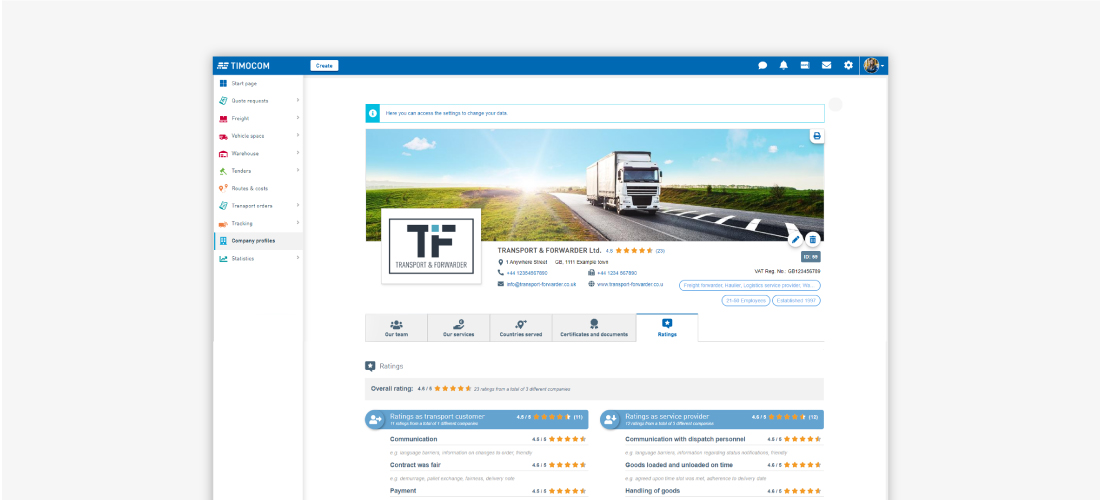
Company profiles are your calling card on the TIMOCOM Marketplace. It’s therefore a good idea to keep your profile up to date.
To do this, click on Settings in the top right. The most important points:
- Company details: after registering, most of this will be entered already. We also recommend uploading your company logo to attract more attention. Alternatively, you can upload a photo of your fleet or your business card.
- Services: if you own your own vehicles, you should specify your vehicle properties under Services. Some customers have specific requirements, so by entering your services, you’ll increase your chances of being found in the search.
- Documents: to make life easier for your potential new business partners, you can upload order-related company documents, such as your EU licence, commercial register excerpt or insurance policies, to your profile.
The best part: if you are a freight forwarder or haulier based in Germany, you can have your company checked regularly on the basis of these documents. Once the check has been completed successfully, the Checked Company seal will appear in your company profile. This enables customers to recognise checked companies at a glance, thus increasing their chances of being hired.